
DARK SOULS 3 Coop: Summoning and Seamless Setup Guide
Learn DARK SOULS 3 coop: summon friends, set passwords, fix missing signs, and install Seamless Co-op for shared progression and longer adventures on PC.
Jump to
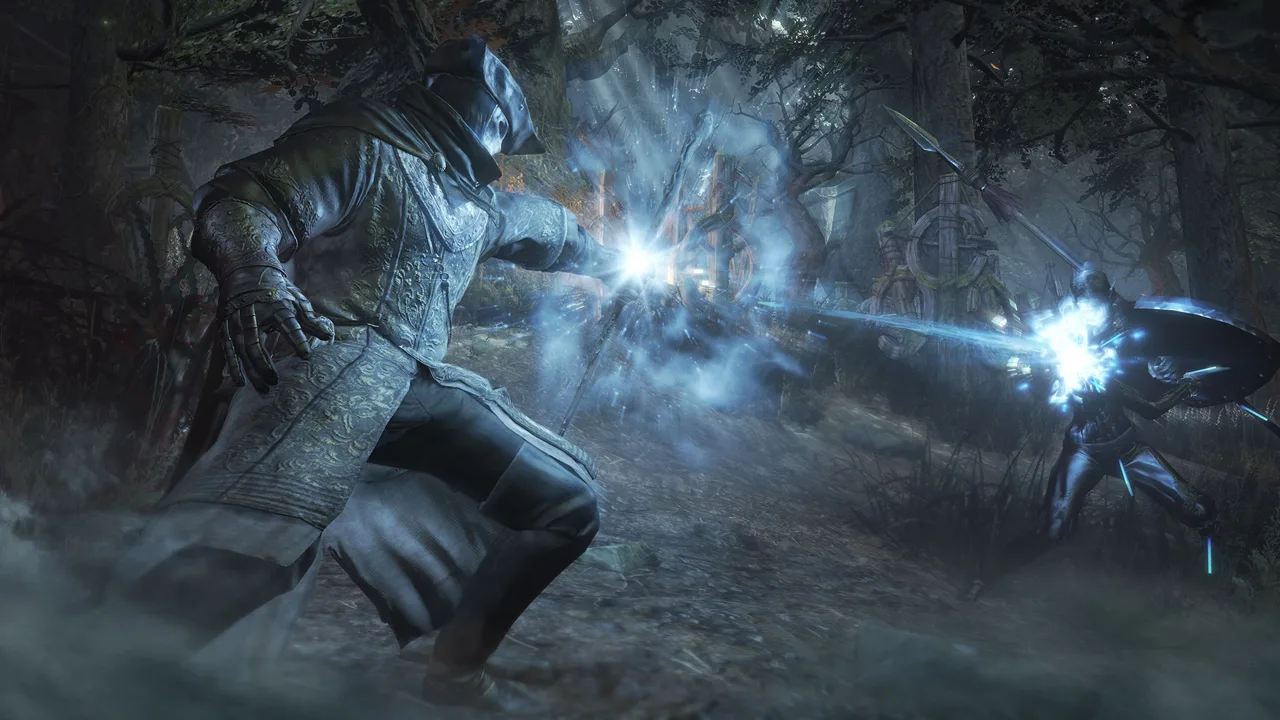
DARK SOULS 3 coop lets you bring friends into Lothric, but your setup determines whether you’re sharing a boss fight or an entire playthrough. Standard multiplayer uses summon signs and ends sessions after major events; the PC Seamless Co-op mod keeps the party together and shares progression. Choose your method before starting characters together, because the two systems use different connection rules and saves.
How to Play Co-op With Friends
You have two ways to team up: the game’s built-in summoning system or Seamless Co-op on PC.
Standard multiplayer brings helpers into a host’s world to explore an eligible area and defeat its boss. Seamless Co-op changes that structure, allowing a continuous adventure with synchronized progression.
| Feature | Standard multiplayer | Seamless Co-op on PC |
|---|---|---|
| Friendly party size | Host plus up to three helpers, with Dried Finger required for the third helper and area restrictions applying | Up to six players total |
| Connection method | White Sign Soapstone and summon signs | Shared session password and mod items |
| Defeating a boss | Helpers return to their worlds | Party stays together |
| World progression | Boss completion advances the host’s world | Progression events also advance participating players’ worlds |
| Area boundaries | Multiplayer barriers restrict travel | Multiplayer zone barriers are removed |
Standard online play has no cross-platform matchmaking. Everyone needs to play on the same platform. Seamless Co-op is a PC mod that uses Steam networking.
Official page: DARK SOULS™ III (bandainamcoent.com)
Set Up Standard Summoning
Decide who will host, then have everyone meet at the same location within an area that supports summoning.
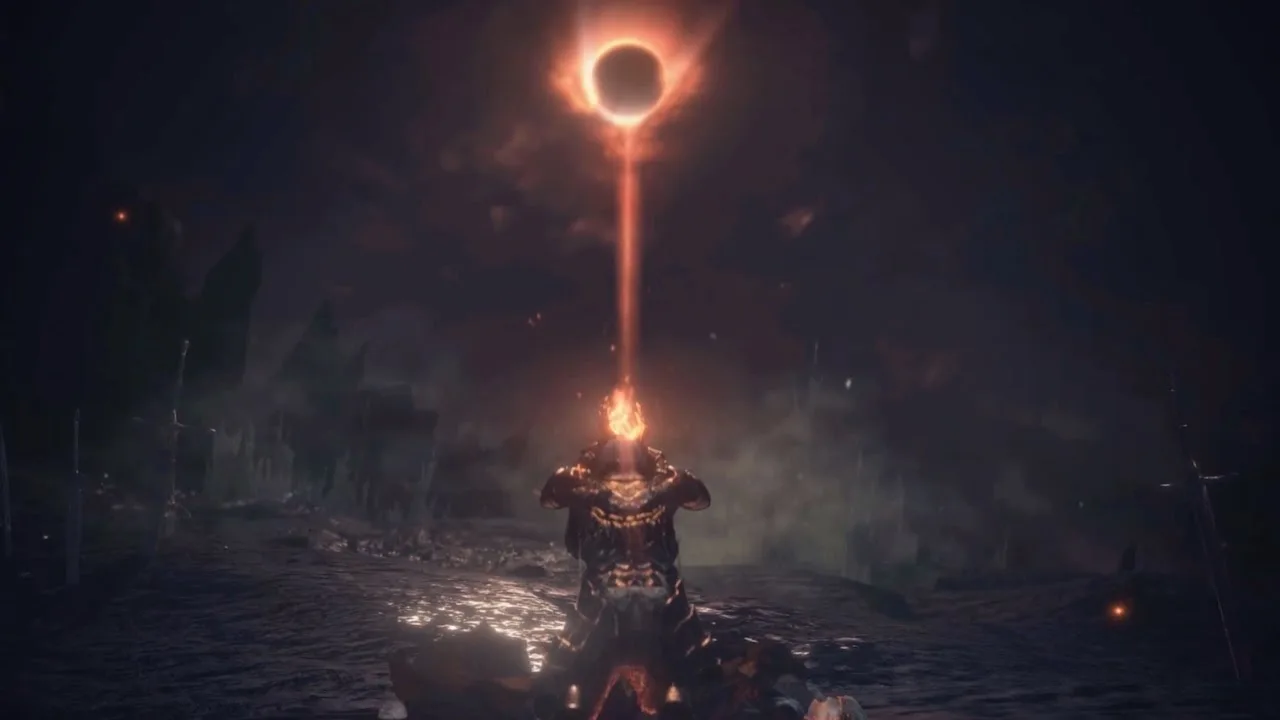
- Buy a White Sign Soapstone. Helpers can purchase it from the Shrine Handmaid in Firelink Shrine.
- Connect to the game’s online service. Everyone needs to be online.
- Set the same password. Enter an identical multiplayer password in the network settings.
- Check the host’s Ember status. The host must be Embered to summon friendly phantoms. Helpers do not need to be Embered to place their signs.
- Keep the area’s boss alive in the host’s world. White-sign co-op requires an eligible, uncleared area.
- Have helpers place their signs. Use the White Sign Soapstone at your agreed meeting point.
- Have the host summon each helper. Interact with the signs that appear on the ground.
Only helpers should place signs. Your own active summon sign hides other players’ signs, so a host who also uses the soapstone can accidentally make the meeting harder.
Passwords and level differences
Without a password, matchmaking considers character level and weapon upgrade level. Weapon matchmaking uses the highest upgrade level your character has reached, rather than simply the weapon currently equipped.
Password matching bypasses the usual soul-level and weapon-upgrade restrictions for sign summoning. Higher-level helpers receive a scaling adjustment.
A password does not bypass the host’s boss-clear restriction. If the relevant boss is already dead, changing passwords will not restore friendly white-sign summoning there.
Bringing more friends
Use the Dried Finger when you need a third friendly phantom in an area that permits one. It also increases invasion exposure: it resets the invasion timer and allows a second hostile invader.
Check the area’s limits before troubleshooting a missing third friend. Some locations and boss encounters restrict how many helpers can join.
Understand Boss Clears, Deaths, and Progression
Standard co-op takes place in the host’s world. Defeating the area’s boss ends the co-op session and returns helpers to their own worlds.
Summoned phantoms have reduced flask supplies. Estus charges are halved and rounded down, so three charges become one while a single charge becomes zero.
Adjust your flask allocation before placing a sign, especially if your build needs both healing and FP.
Fix Missing Summon Signs and Failed Connections
Work through the summoning requirements before changing router settings.
 Image: Steam / FromSoftware, Inc.
- Check the platform. PC and console players cannot match with one another.
- Compare passwords. Everyone must enter the same password.
- Check the host’s Ember status. Restore it after a death before looking for friendly signs.
- Check the boss. A cleared area blocks normal white-sign co-op.
- Remove the host’s own sign. An active sign hides other players’ signs.
- Confirm the meeting spot. Everyone should stand at the same location within a summon-enabled area.
- Check available slots. Area limits and existing phantoms affect additional summons.
- Match game and regulation versions. Different regulation versions prevent matchmaking.
- Review cross-region matchmaking. Enable it when needed to connect across the game’s matchmaking regions.
NG and NG+ characters can summon one another. A difference in playthrough cycle does not, by itself, block the connection.
If the requirements are satisfied but connections still fail, check the network. Strict NAT can interfere with multiplayer even when ordinary web browsing works. Review your router’s UPnP configuration and connection restrictions.
Password matching can also take longer when players have a large level gap or an area is crowded. Allow time for the sign to appear before repeatedly replacing it.
Install Seamless Co-op on PC
Seamless Co-op uses its own launcher and requires no additional mods. The release described here is an alpha built for game version 1.15.2, so expect bugs during a playthrough.
The January 12, 2023 PC update fixed bugs from version 1.15.1. Its title-screen identifiers are:
| Title-screen field | Version |
|---|---|
| App Ver. | 1.15.2 |
| Regulation Ver. | 1.35 |
Installation steps
- Back up your saves before installing.
- Download the Dark Souls III Seamless Co-op package.
- Find the game installation. In Steam, open the game’s Properties, select Installed Files, and use Browse.
- Open the
Gamefolder. A typical location isC:\Program Files (x86)\Steam\steamapps\common\DARK SOULS III\Game. - Extract the package into that folder. Preserve its folder structure, including the
SeamlessCoopdirectory. - Edit
ds3sc_settings.ini. Set a private co-op password and have every party member use the same one. - Start
ds3sc_launcher.exe. Use this launcher whenever you want the modded experience. - Rest at a bonfire. This grants the items used to host and join sessions.
- Choose one host. Have the other players use the mod’s joining item with the matching password.
Steam must be running, signed in, and outside Offline Mode. A session password is required for both hosting and joining.
Keep that password private. Someone who knows it can join your session immediately.
Installation and Steam errors
The error seamlesscoop\locale not found which has no fallback means the installation is missing its locale folder. Check that the folder exists inside Game\SeamlessCoop and restore the package’s intended structure.
For Failed, Steam timed out, check your Steam connection. Steam’s regular Tuesday maintenance can interrupt connectivity.
Update the mod together so everyone stays on the same release. Compatibility with other mods has not been tested, so avoid combining it with changes that interfere with multiplayer or its session items.
What Changes During a Seamless Session?
Seamless Co-op removes the repeated summon-and-dismiss cycle. Defeating a boss keeps your friends in the world, and multiplayer boundaries no longer divide the adventure into separate summoning zones.
NPC dialogue and talk events synchronize across the party. Progression events completed together also advance your own world, giving the group a shared campaign.
Bonfires affect everyone
When one player rests at a bonfire, the world resets for the entire party. If teammates are inside a boss room, resting removes them from that room.
Call out a rest before using a bonfire. That gives everyone time to finish exploring or prepare for the reset.
Death has special combat rules
During ordinary exploration, a dead player respawns in the same world at the last bonfire they rested at.
Death during a boss battle or invasion puts the player into a spectator state instead. That lasts until the whole party is defeated or someone rests at a bonfire. During an active invasion, resting is unavailable.
Scaling and invasions are configurable
The mod allows you to customize scaling alongside the increased enemy health associated with additional phantoms. Coordinate those settings before a campaign so the party agrees on the challenge.
Setting allow_invaders = 1 enables hostile players to enter the session. During an active invasion, you cannot warp or rest at bonfires until the invader is defeated and removed.
Keep Modded and Standard Saves Separate
Seamless Co-op uses .co2 saves, while the base game uses .sl2 saves. The mod also prevents connections to FromSoftware’s standard matchmaking servers.
Do not convert a Seamless Co-op save back into a standard save. Mod-specific items can trigger a ban if carried into the base game’s online environment.
To bring an existing standard character into the mod:
- Close the game and back up the original save.
- Make a separate copy of the
.sl2file. - Change the copied file’s extension to
.co2. - Launch through
ds3sc_launcher.exe.
The mod grants its multiplayer items automatically when using the imported character. Keep the original .sl2 file separate.
On Windows, the game’s save directory is C:\Users\<username>\AppData\Roaming\DarkSoulsIII. Enable hidden folders if AppData is not visible.
Use the mod launcher for Seamless sessions and launch the game normally for standard play. You can leave the mod installed while switching between those entry points.
Continue with
 DARK SOULS 3 Covenants: Locations, Rewards, and RanksExplore DARK SOULS 3 covenants, find every faction, compare rewards, and learn how to farm covenant items while avoiding Sirris and Mound-Makers lockouts.
More in Multiplayer
See all Multiplayer
Continue exploring
Join the community
Official channels for news, updates and player help: