
DARK Souls 3 Graphics Mod Guide: Lighting and Textures
Choose a DARK SOULS 3 graphics mod for sharper textures, dynamic shadows, and cleaner lighting. Learn setup steps, 2K options, and performance trade-offs.
Jump to
Which Graphics Mod Should You Choose?
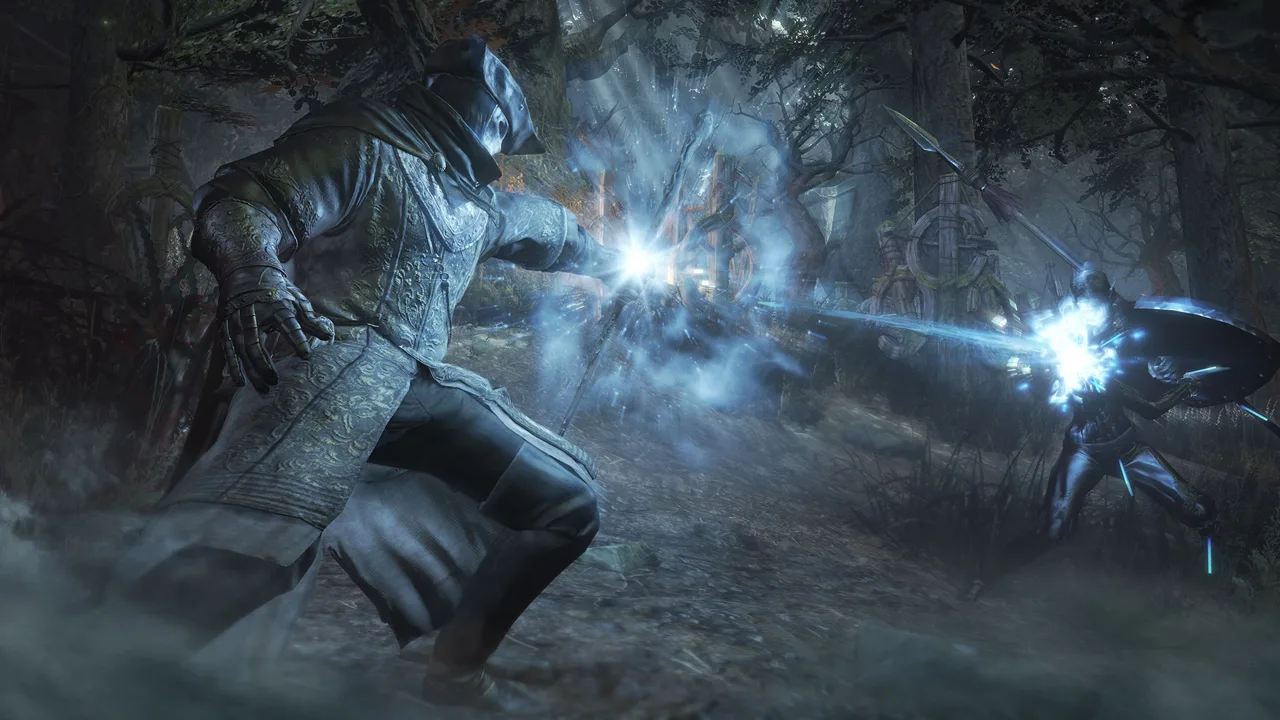
Give Lothric’s weathered stonework and candlelit halls another look with a DARK SOULS 3 graphics mod. DS3 Visual Overhaul changes lighting, shading, and materials, while Embers reworks light sources and shadows, and Texture Improvement Mod upgrades texture detail. Choose the changes you want before installing anything, because each package addresses a different part of the image.
ReShade handles post-processing effects such as sharpening and anti-aliasing. Texture replacements change surface detail, while lighting modifications affect how environments and characters are illuminated. A sharper image, richer textures, and different shadows are separate upgrades.
Keep gameplay additions separate from your visual setup. Honest Bonfire adds convenient bonfire services, while Cinders and The Convergence make broader gameplay changes.
Official page: DARK SOULS™ III (bandainamcoent.com)
DS3 Visual Overhaul: Lighting, Materials, and Clarity
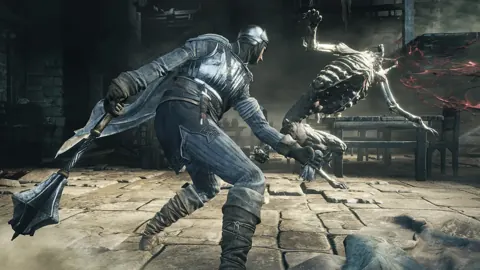
DS3 Visual Overhaul version 0.6 edits the game’s graphics parameters, maps, lighting, and textures. Its changes reach beyond a color filter:
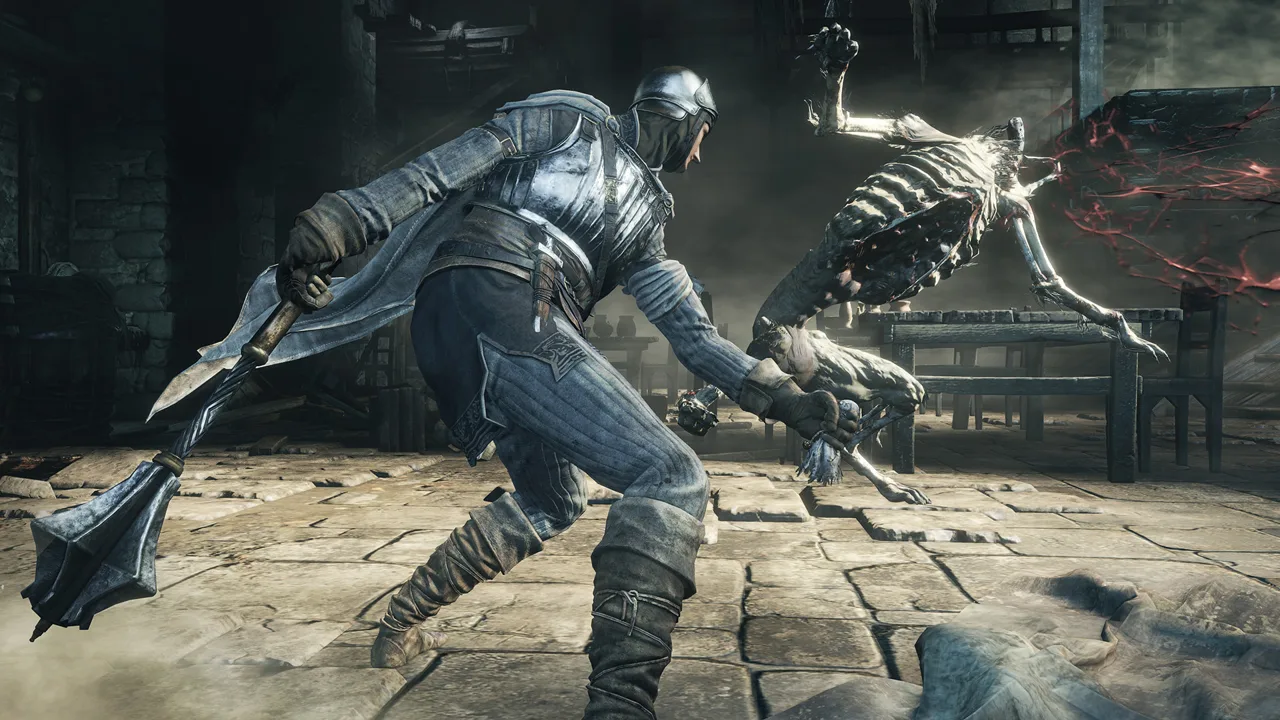 Image: Steam / FromSoftware, Inc.
- Modified reflectance maps address overly metallic surfaces.
- Improved screen-space ambient occlusion adds shading around nearby surfaces.
- Dynamic shadows and adjusted point-light falloff change local illumination.
- Player and enemy hero lighting is removed.
- Color grading and the vignette are disabled.
- Exposure and normal-map lighting receive adjustments.
- LOD and texture pop-in receive fixes.
Removing hero lighting changes how characters sit within a scene. Their appearance depends more on the surrounding illumination, rather than an artificial light that follows them.
The package also disables the game’s FXAA and provides a ReShade preset for temporal anti-aliasing. Install that component when following this setup so you replace the disabled anti-aliasing.
Install with ModEngine2
The installation route for version 0.6 uses ModEngine2:
- Install ModEngine2.
- Open its
modfolder. - Place the overhaul’s
mapandparamfolders inside that folder. - Start the game through
launchmod_darksouls3.bat. - Run the ReShade installer.
- When prompted for a preset, select the included
DS3_TAA.ini. - Let the installer download the required shaders.
That preset uses CAS for contrast-adaptive sharpening and Vort_motion for motion vectors and TAA.
The ModEngine2 folder can sit inside the game directory, but that location is optional. Follow the folder structure carefully: the overhaul’s map and param folders belong inside ModEngine2’s mod folder.
Alternative installation with UXM
UXM provides another route by unpacking the game’s archives and patching it to load loose files:
- Back up the original installation.
- Open UXM and select the game executable in the
Gamedirectory. - Choose Unpack and let it finish.
- Choose Patch.
- Copy the overhaul’s
mapandparamfolders into the game’sGamedirectory, replacing files when prompted.
Choose one installation method and follow its instructions throughout. Unpacking is part of the UXM route; it is not a prerequisite for the ModEngine2 instructions above.
Embers: Stronger Contrast Between Light and Darkness
Embers reworks lighting within the existing game engine. Torches, candles, and bonfires gain dynamic shadows, while the artificial light around the player is removed.
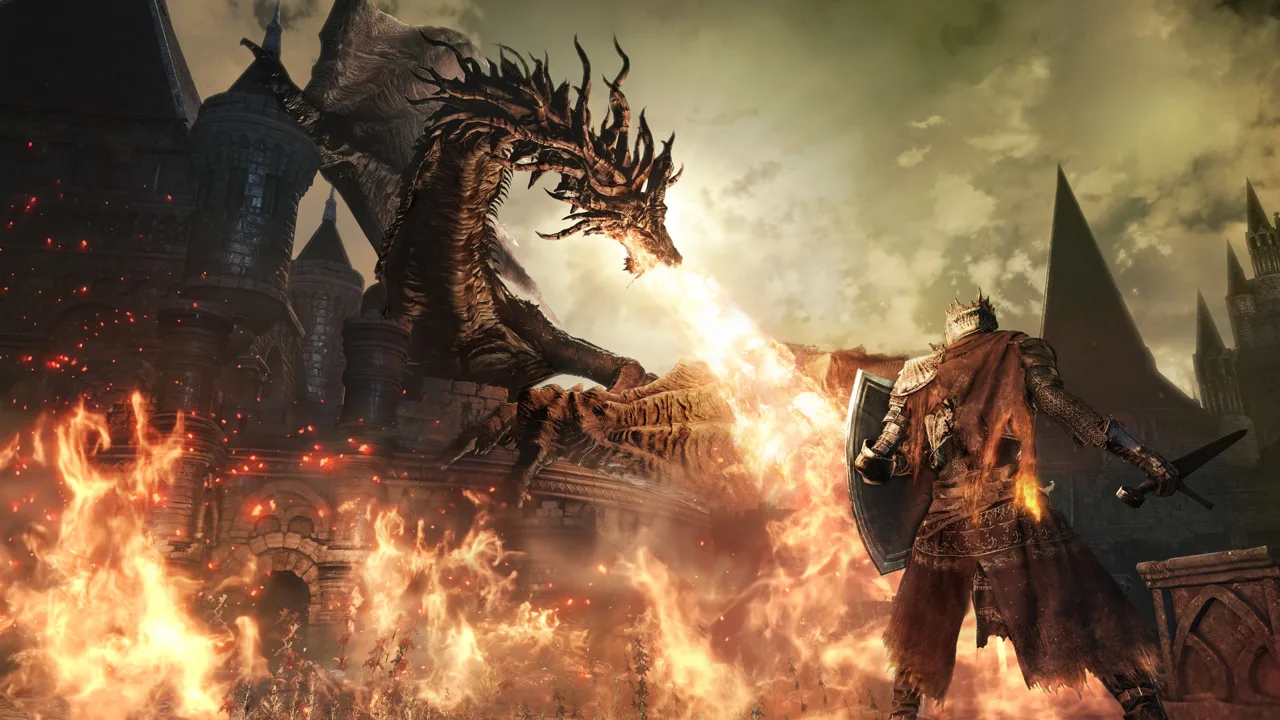 Image: Steam / FromSoftware, Inc.
That changes the relationship between a light source and the room around it. Candle-heavy spaces such as Firelink Shrine become brighter near their lights, with illumination fading as you move farther from those lights.
Its other changes include contrast adjustments, geometry pop-in fixes, and improved water reflections.
Choose Embers if those lighting changes are what you want to explore. Test it separately from DS3 Visual Overhaul before attempting a combined installation: both modify lighting behavior, and overlapping changes need deliberate compatibility checks.
When comparing the result, walk between a bright bonfire and a darker corner. Check whether you can still read enemy silhouettes and nearby geometry comfortably during movement.
Texture Quality and Frame Rate Settings
Texture Improvement Mod combines upscaling with manual texture replacements. It offers 2K and 4K versions, including improvements to environmental surfaces such as landscapes and buildings.
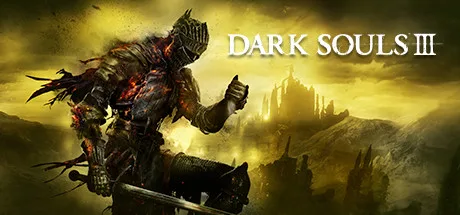 Image: Steam / FromSoftware, Inc.
Start with the 2K version. If you try 4K and notice textures appearing late as you move, return to 2K before adding more visual effects.
Proper PC Experience addresses display behavior alongside these visual upgrades. Its features include:
- Refresh-rate support beyond the default 60 Hz.
- An unlocked frame rate beyond the default 60 FPS.
- G-Sync and FreeSync support.
- Ultrawide resolutions.
- Field-of-view adjustments based on aspect ratio.
- Intro-video skipping.
Use these starting values for the options supported here:
| Setting | Starting value | Reason |
|---|---|---|
| Texture Improvement Mod resolution | 2K | The recommended starting version for avoiding the texture pop-in encountered with 4K |
| Frame-rate cap when using an unlocker | 120 FPS | A suggested limit because higher frame rates can introduce physics glitches |
The 120 FPS suggestion is a cap, rather than a performance target or a guarantee against physics problems. If you encounter abnormal physics after unlocking the frame rate, return to the default 60 FPS while troubleshooting.
Keep refresh rate and frame rate distinct. Refresh rate describes the display’s update frequency; frame rate describes how many frames the game renders. Raising either setting does not replace textures or change lighting.
Back Up Your Game and Match Mod Versions
Back up both the installation and your saves before replacing files. The Windows save folder is:
C:\Users\username\AppData\Roaming\DarkSoulsIII
Replace username with your Windows account name. Enable hidden-file visibility if you cannot see AppData.
For game-version checks, the January 12, 2023 PC update provides these useful identifiers:
- App Ver. 1.15.2
- Regulation Ver. 1.35
- The update fixes bugs introduced in 1.15.1.
Compare your title-screen version with each mod’s compatibility requirements before installing executable patches or loaders. Keep modified-file setups offline; cosmetic changes do not provide a guarantee against online penalties.
UXM includes a Restore option for restoring its patch state. Keep your original-file backup as well, because replacement textures, maps, and parameters need their own recovery path.
Fix Missing Effects, Pop-In, and Mod Conflicts
Change one component at a time so you can identify what causes a problem.
The overhaul looks jagged: Confirm that you installed its DS3_TAA.ini preset and required shaders. Version 0.6 disables the built-in FXAA, making its replacement anti-aliasing step important.
Textures appear late: Switch Texture Improvement Mod from 4K to 2K, then revisit the same area and compare texture loading while moving.
Textures disappear after adding ReShade: If your setup uses iGP11, isolate that combination before changing other files. Texture injection and ReShade have had conflicts; follow installation instructions that explicitly support your chosen combination.
Lighting changes disappear after another installation: Check whether both packages replace the same map or param files. Avoid overwriting a working setup without retaining a copy.
Physics behave strangely: Restore the default 60 FPS cap and test again before adjusting graphics options.
Performance drops after several additions: Disable the newest component and repeat the same route. Compare image quality during combat and camera movement, where unstable frame delivery or delayed textures are harder to ignore.
Continue with
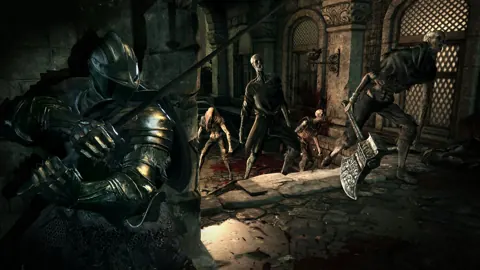 DARK SOULS 3 Mods: Overhauls, Challenges, and SetupExplore DARK SOULS 3 mods, including Convergence, Cinders, and Archthrones. Compare gameplay changes, protect your saves, and prepare for a new run on PC.
More in Mods
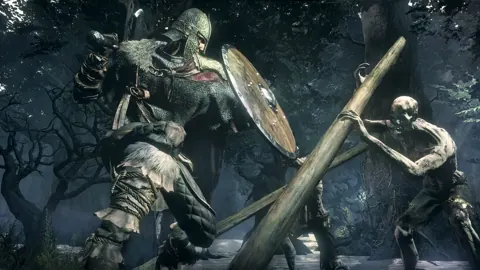
DARK Souls 3 Archthrones: Demo, Combat & Setup Guide
Explore DARK SOULS 3 Archthrones, including its five worlds, 17 bosses, new combat mechanics, DLC requirements, installation steps, and multiplayer setup.
DARK Souls 3 Convergence: Classes, Spells, and Setup
Explore DARK SOULS 3 Convergence: classes, 12 magic schools, covenants, boss rematches, and installation tips. Learn the DLC requirements before playing.
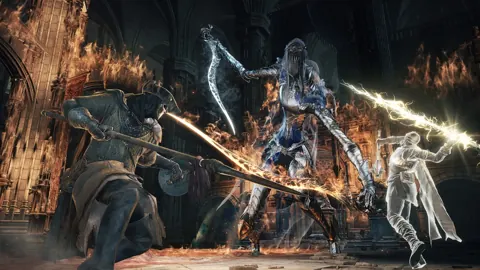
DARK SOULS 3 Seamless Coop: Install and Play With Friends
Set up DARK SOULS 3 seamless coop on PC, connect with friends, manage separate saves, and fix common errors for a smooth journey through Lothric together.
Continue exploring
Join the community
Official channels for news, updates and player help: